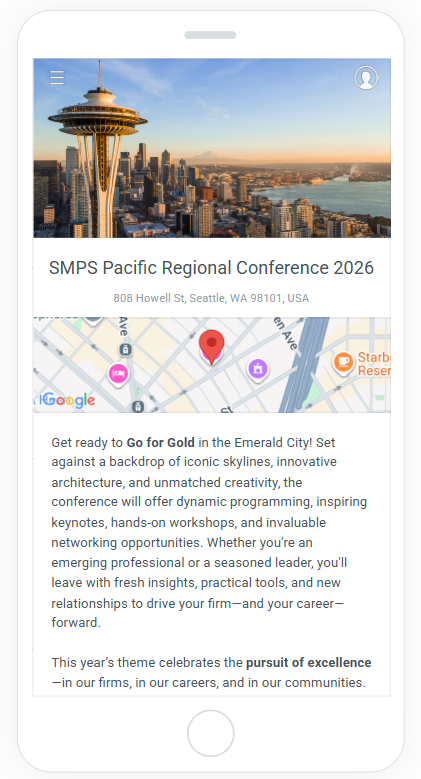
Guidebook App
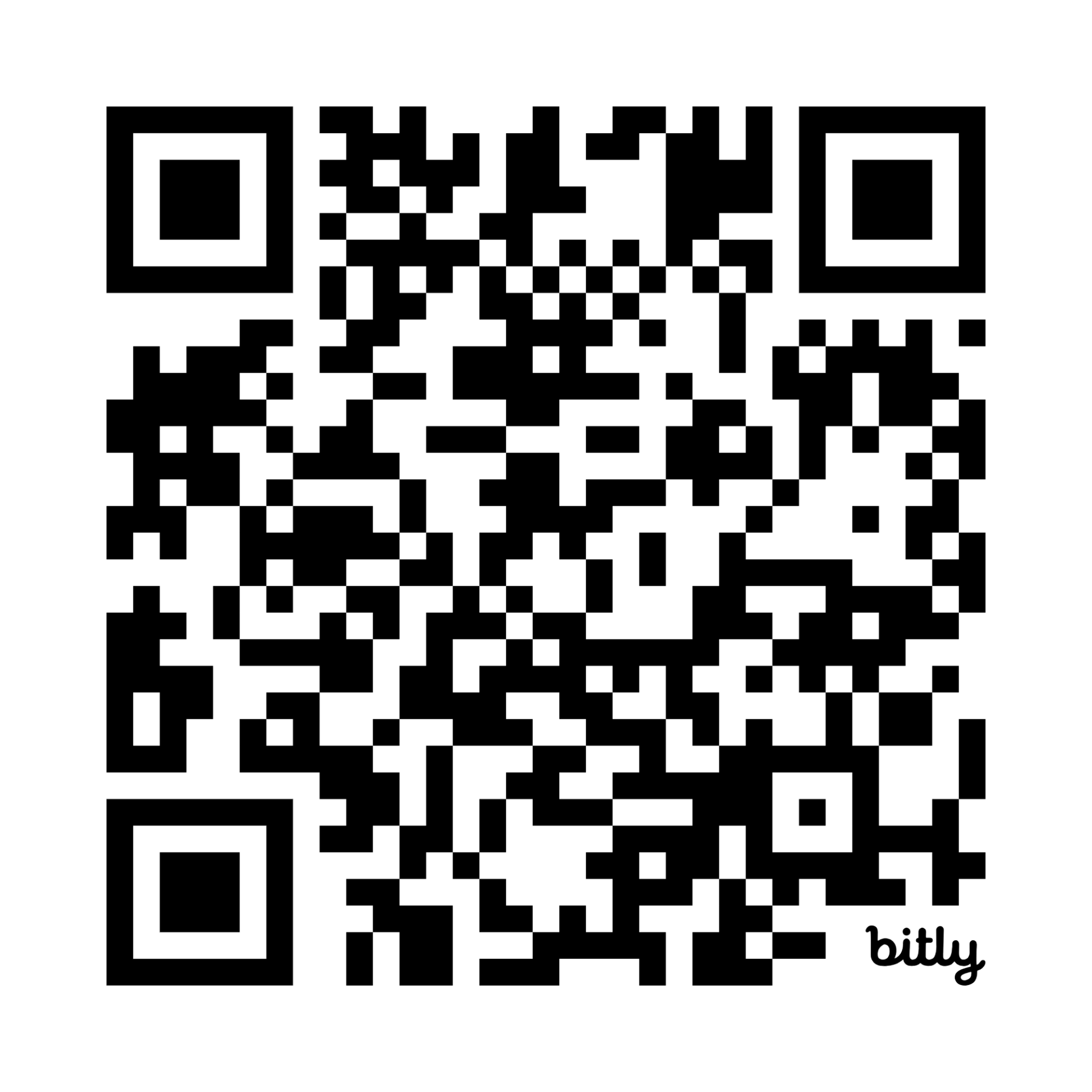
Use this QR code to download the correct version for your mobile device:
For the third year running, PRC is going paperless—keeping Seattle’s sustainable spirit front and center. The Guidebook App is the main source of information for all things conference-related, including conference schedules, session details, and updates. Think of it as your digital playbook: quick, convenient, and always ready to keep you in the game.
Benefits of Guidebook App:
- Attendees can access all of our speaker session information, sponsor pages, and see the location of each of our planned events in advance of attending the conference.
- Use our handy “My Schedule” feature, which allows you to select your own sessions and plan out everything you need to know before you go.
- Interactive map features.
- Options for connecting and socializing with other attendees.
- Receive notifications if there are any last-minute changes to the sessions you are scheduled to attend.
- We’ve even added in lists of recommended restaurants and things to do while you are visiting.
Once downloaded, the Guidebook is available offline and will not require a Wi-Fi connection other than to download any App updates. Download the app now so you’ll be ready to hit the ground running when the conference starts.
Ready to download the app? Here’s what to do!
Simply download the Guidebook app prior to attending PRC in Seattle in March 2026. Detailed information regarding how to download and use the Guidebook app is included below. Use this QR code to the left to download the correct version for your mobile device.
Additional resources:
- Watch this quick video on how to download Guidebook: Guidebook download tutorial
- Tips on how to find and use the app: Accessing and Using a Guidebook App – Guidebook Support
- Once you've downloaded the Guidebook app to your mobile device, search for SMPS Pacific Regional Conference 2026. Now you can create your schedule, make your meetup plans, share your photos at the conference and more!
Join the Leaderboard!
Conference App Leaderboard Game — Official Rules
Welcome to the Leaderboard, where connection, conversation, and feedback make champions! Earn points in the conference app by networking, diving into content, and engaging with your fellow attendees. Climb the ranks and score big! The more points you earn, the higher you climb on the Leaderboard. Top scorers will win awesome prizes!
HOW TO PLAY
Get in the Game
-
Download the conference app (if you haven’t already).
-
Log in to the conference app with your registered email or create an account. (you must be logged in to earn points!)
- Your point totals and rank are visible in the app under Leaderboard. Rankings update in real time as you earn points.
Network, Engage & Provide Feedback to Earn Points
You’ll earn points for actions that help you explore, connect, and contribute to the conference community.
Examples of activities that earn points include:
-
Complete session evaluations and rankings – This information helps our planning committees and speakers provide you with better content in the future.
-
Interact in conversations—comment, like, and post to earn more points and spark lively discussion.
-
When you connect with other attendees in the app, you earn points and expand your conference network.
-
Adding sessions to your schedule
-
Connecting with another attendee (See instructions below!)
Point System
| 25 Points | 20 Points | 15 Points | 10 Points | 5 Points |
|
|
|
|
|
Rules to Know
-
Only actions completed within the app before the closing Keynote on Friday count toward points.
-
Points earned since we launched this year’s app count too—if you’ve already been active, you already have points on the board!
Winning & Prizes
The top point earners at the end of the conference will receive prizes!
Details on prizes and the award schedule will be announced during the opening announcements.
Pro Tips
-
Turn on push notifications to get reminders throughout the event.
-
Use the Pin Exchange and networking events to spark conversations — then connect in the app to rack up even more points.
How to Connect with an Attendee in the App
After logging in, your profile is public, and you can go to the Connect list to connect to other users or scan a user’s Guidebook ID. To connect with other users, your profile must be public.
Users can change their profile from public to private in their Account Settings
Connect Feature
To connect with others:
-
Log in to your Guidebook app with your account.
-
Go to the Connect section in the app menu (the name may vary if the guide admin renamed it).
-
You’ll see a list of attendees who are also logged in with public profiles.
Make a connection:
-
Find someone in the list and tap Add next to their name
or
-
Open their profile and tap Connect
-
You can include a message with your request.
Your profile must be public for others to see you and send connection requests. You can make your profile private in your Account Settings.
Once someone accepts your request, they appear in your Connections list. You can then view their full profile and start a chat.
Guidebook ID
-
Tap the menu (≡) in the app.
-
Tap the QR code icon at the bottom of the menu to see your Guidebook ID.
-
You can switch between “My Code” and “Scan”:
-
Someone can scan your code
-
Or you can scan theirs
-
This sends a connection request to the other user.
-
Once accepted, you can chat and view each other’s profiles.


Chat with your Connections
After a connection is accepted:
-
Go to the Connect list or look in your profile (top-right of the app).
-
Tap someone’s name and choose Chat or tap the chat icon next to their name.
-
You can send text and photos.

